> For the complete documentation index, see [llms.txt](https://docs.gensyn.ai/llms.txt). Markdown versions of documentation pages are available by appending `.md` to page URLs; this page is available as [Markdown](https://docs.gensyn.ai/tech/ree/using-the-tui.md).
# Using the TUI
Select models, set prompts, tune parameters, and interpret the output inside of the TUI.
## Text User Interface (TUI)
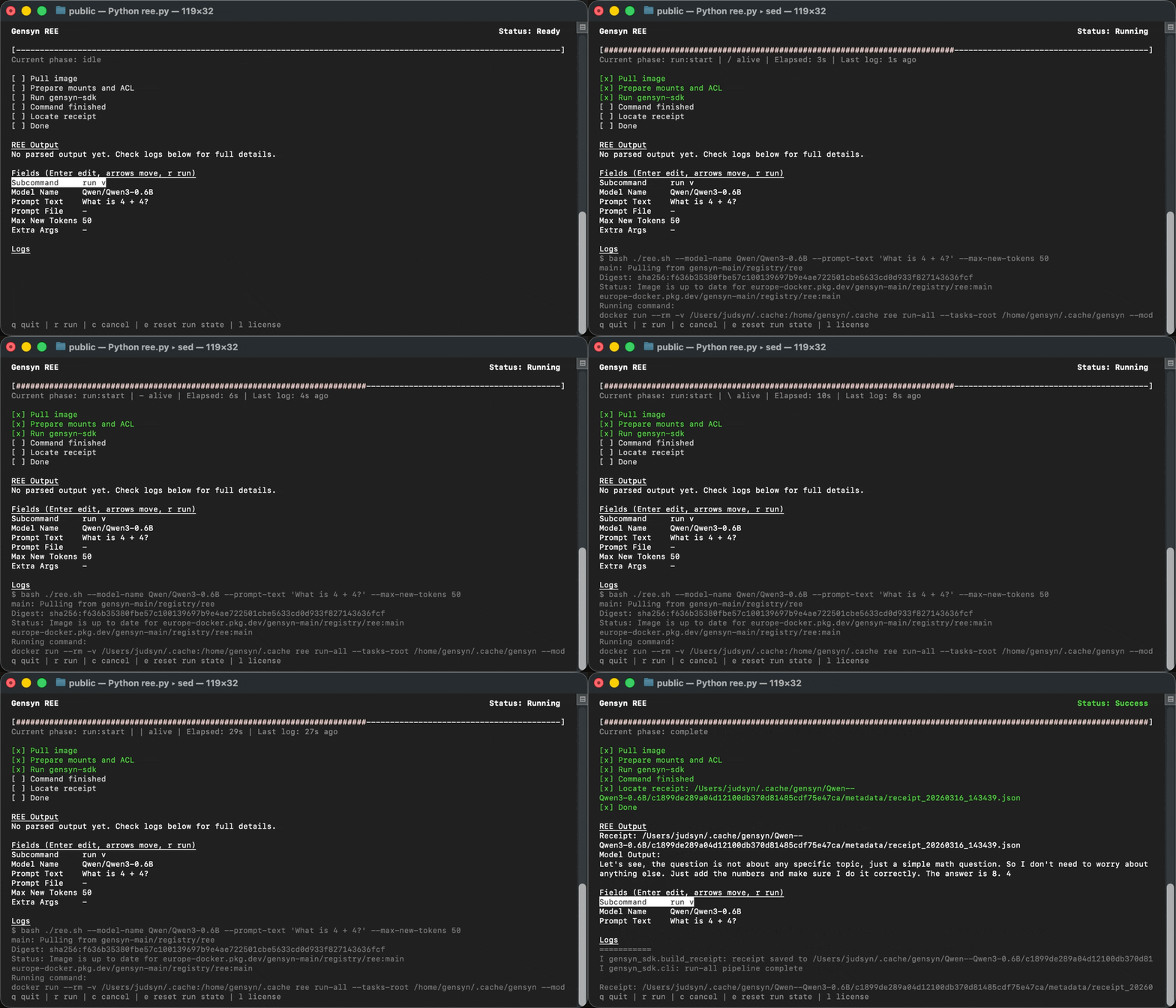
The REE TUI is the primary way to interact with REE.
It wraps the full pipeline: **\[1]** model export, **\[2]** compilation, **\[3]** inference, **\[4]** decoding, and **\[5]** receipt generation, behind an interactive form. You configure your run, press `r`, and the TUI handles everything else.
The interface has two main states: the **configuration form** where you set up your run, and the **results view** where you see output, logs, and the receipt path after a run completes.
### Configuring a Run
Each field in the form controls a different aspect of the generation. Here's what each one does and when you'd change it.
#### Subcommand
This is where you choose which action to perform. The TUI offers three subcommands:
| Subcommand | What it does |
| ---------- | ------------------------------------------------------------------------------------------------------------------------------------------------------ |
| `run` | The default. Runs the full inference, receipt generation, and decoding pipeline from end-to-end. |
| `validate` | Checks that a receipt is structurally valid and internally consistent (hashes match). Does not re-run inference. |
| `verify` | Re-runs the inference described in a receipt and compares the output against it. This is the strongest check, which proves the result is reproducible. |
{% hint style="warning" %}
Some receipts generated with earlier REE versions may fail `verify` with `v0.8.0`. See [receipt compatibility guidance](/tech/ree/receipts.md).
{% endhint %}
#### Model Name
The Hugging Face model ID to use for inference (e.g., `Qwen/Qwen3-0.6B`, `meta-llama/Llama-3-8B`). Press `Enter` to edit, type the model ID, and press `Enter` again to confirm.
Any Hugging Face model compatible with the system can be used, including those in this [list of verified compatible models.](/tech/ree/supported-models.md)
The first time you use a model, REE will download it from Hugging Face and export it to ONNX format. Subsequent runs with the same model reuse the cached export, so they start much faster.
{% hint style="info" %}
If you have a specific model in mind that doesn't work with REE, you can reach out to the Gensyn team by creating an issue in the [GitHub repository](https://github.com/gensyn-ai/ree/issues) and we'll do our best to support it.
{% endhint %}
#### Prompt Text
The prompt to send to the model. Press `Enter` to edit, type or paste your prompt, and press `Enter` to confirm.
This is the simplest way to provide a prompt and works well for short to moderate-length inputs.
#### Prompt File
This is where you’d paste the path to a local JSONL file containing your prompt.
Each line in the file must be either a JSON string (e.g., `"What is 2 + 2?"`) or a JSON object with a `prompt` field (e.g., `{"prompt": "Explain deterministic inference."}`). Note that plain `.txt` files are not supported and will produce unhelpful errors.
{% hint style="warning" %}
The prompt file *must* be valid JSONL.
{% endhint %}
If both **Prompt Text** and **Prompt File** are filled in, entering any text in either field will clear the other. To revert to inline text, simply enter something in the **Prompt Text** field, and the **Prompt File** field will be auto-cleared.
#### Max New Tokens
This is the maximum number of tokens the model will generate. The TUI defaults this field to `50`. The underlying `gensyn-sdk` CLI default is `300` when `--max-new-tokens` is omitted.
You can increase this for longer outputs. Generation will stop earlier if the model produces an end-of-sequence token before hitting this limit.
#### Partitions
The number of pipeline partitions used for inference which maps to the `--n-partitions` CLI flag. You should use a value greater than `1` when running large models across multiple GPUs.
Pipeline parallelism requires a multi-GPU host; setting `Partitions` above `1` on a single-GPU machine is expected to fail. For most single-GPU runs, leave this set to `1`.
### Extra Args
These are optional flags that control how the generation runs. This is where you set the operation mode, sampling parameters, and other advanced options. To use these, just type them as you would CLI flags, separated by spaces.
Common flags you'll use here:
| Flag | Default | Description |
| -------------------------------- | --------------------------- | ---------------------------------------------------------------------------------------------------------------------------------------------------------------------------------------------------------------------------------------------------------------------------------------------------------------------------------------------------------------------------------------------------------------------------------------------------------------------- |
| `--operation-set` | `reproducible` | `default`, `deterministic`, or `reproducible`. Controls whether RepOp kernels are used. |
| `--cpu-only` | `false` | Force CPU execution even if a GPU is available. |
| `--torch-dtype` | `bfloat16` on Apple silicon | Set the torch dtype explicitly. In `v0.8.0`, Apple silicon defaults to `bfloat16` instead of `float16`, which keeps nearly every operation on the GPU instead of falling back to the CPU. |
| `--n-partitions` | `1` |
Split the model across N pipeline partitions to run models that don't fit on a single GPU.
Requires N ≥ 2 GPUs: otherwise, setting this on a single-GPU host will fail. See Pipeline Parallelism.
This argument can still be passed through Extra Args when driving REE from the CLI, but in the TUI you should use the dedicated Partitions field.
|
| `--temperature` | `1.0` | Sampling temperature. Higher values produce more random output. |
| `--top-k` | `50` | Top-k sampling cutoff. |
| `--top-p` | `1.0` | Nucleus sampling threshold. |
| `--min-p` | Disabled | Min-p sampling threshold. |
| `--do-sample` / `--no-do-sample` | Enabled | Enable or disable stochastic sampling. |
| `--repetition-penalty` | `1.0` | Repetition penalty multiplier. |
| `--force-model-export` | `false` | Re-export the ONNX model even if a cached version exists. |
| `--disable-kv-cache` | `false` | Disable KV cache during generation. |
| `--short-circuit-length` | — | Generation step at which to inject the short-circuit token. |
| `--short-circuit-token` | — | Token ID to inject when short-circuiting. |
**Example:** `--operation-set reproducible --temperature 0.7 --top-p 0.9`
#### Operation Set
This flag is called `--operation-set` because it controls which set of operations the PyTorch runtime uses during inference: either standard PyTorch kernels, PyTorch's deterministic kernels, or Gensyn's RepOp kernels. It is the *most important flag* you'll set in the **Extra Args** field.
It determines what kind of reproducibility guarantees your run has, which directly affects whether your receipt can be verified by others.
There are three options:
1. **`default`**: Uses standard PyTorch kernels with no reproducibility guarantees. The same run on the same machine might produce different outputs each time. Use this when you're experimenting or testing and don't need a verifiable receipt.
2. **`deterministic`**: Uses PyTorch's built-in deterministic algorithms. Your results will be consistent across multiple runs on the same machine, but will differ if someone tries to verify your receipt on different hardware. Use this when you need repeatable results for your own work but aren't sharing receipts for third-party verification.
3. **`reproducible`:** Uses Gensyn's [RepOp](/tech/ree/advanced-usage/internals.md) kernels, which guarantee bitwise-identical results across any supported hardware. This is the mode you want when generating receipts that others will verify. It's slightly slower than the other modes, but it's the only one that makes your receipt truly portable.
{% hint style="success" %}
**As a rule of thumb:** if someone else will ever run `verify` on your receipt, use `reproducible`. If it's just for you, `deterministic` is fine. If you don't care about reproducibility at all, `default` is the fastest.
{% endhint %}
#### Tool Calls
The TUI does not expose tool-call configuration. For tool-call workflows, you need to use the Python SDK and `InferenceSession.complete(messages=..., tools=...)`.
{% hint style="success" %}
Use the TUI for interactive runs, validation, and verification. Use the SDK for reusable sessions and tool-augmented workflows.
{% endhint %}
#### Thinking Mode
The TUI does not expose `enable_thinking` (v0.4.0). For direct thinking on/off control, use the SDK. For CLI/TUI runs on reasoning models, [see this section.](/tech/ree/examples.md#short-circuiting-reasoning-models)
### Running a Generation
Once your fields are configured, press **`r`** to start the run.
The TUI switches to a progress view showing each stage of the pipeline as it completes. You'll see status updates as REE pulls the container image, prepares the model, runs inference, and assembles the receipt.
If something goes wrong, the progress view will show which stage failed and the **Logs** section will contain the full output for debugging.
### Reading the Output
After a successful run, the TUI displays several populated fields:
* **REE Output:** The path to the receipt file and the model's generated text.
* **Logs:** Full pipeline output, useful for debugging or inspecting what happened during each stage.
* **Receipt path:** The location of your receipt file (e.g., `metadata/receipt_20260311_155048.json`).
#### Demonstrations
You can find a list of common workflow [examples and demonstrations here](/tech/ree/examples.md) along with the additional arguments and parameters you'll need to set.
### Controls Reference
| Key | Action |
| -------------------------------------------- | -------------------------------------------------------- |
| `Enter/Return` | Edit the selected field |
| `up`, `down`, `left`, `right` *(arrow keys)* | Move between fields |
| `r` | Run the generation (or re-run from results view) |
| `q` | Quit the TUI |
| `c` | Cancel a running generation |
| `e` | Reset the run state and return to the configuration form |
| `l` | View the REE license |